
Describe it.
Kayzart writes the page.
AI writes real HTML and CSS inside WordPress, and you keep editing it. What comes out is not a proprietary format — it is code you own.
No page builder · no child theme · no build pipeline
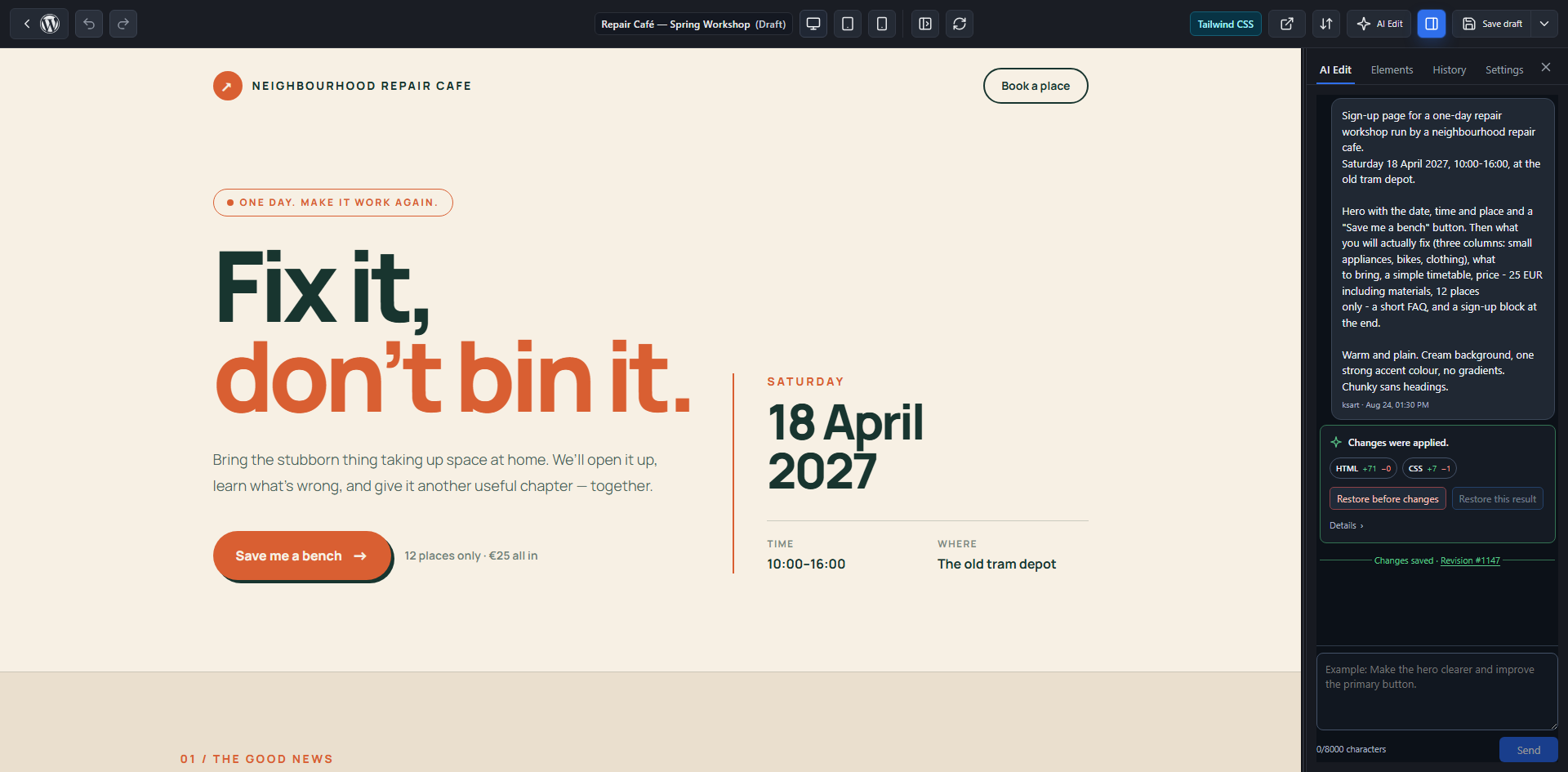
For people who write code, and people who don’t.
If you just want a page, describe it and the AI builds it. When you want to get into the details, the code is right there.
People who don’t code
Describe it, then fix it in plain language. Edit text, links and images from the Elements panel.
Freelancers
Let the AI rough it in, then finish it by hand. What you hand over is plain HTML.
Agencies
Ship landing pages fast and duplicate them for variants. Clients get the Elements panel, not the code.
Site owners
Add a campaign page without touching the theme you already run.
Describe it. Watch it build. Keep the code.
Three steps from Kayzart > Add new. Nothing is published until you save.
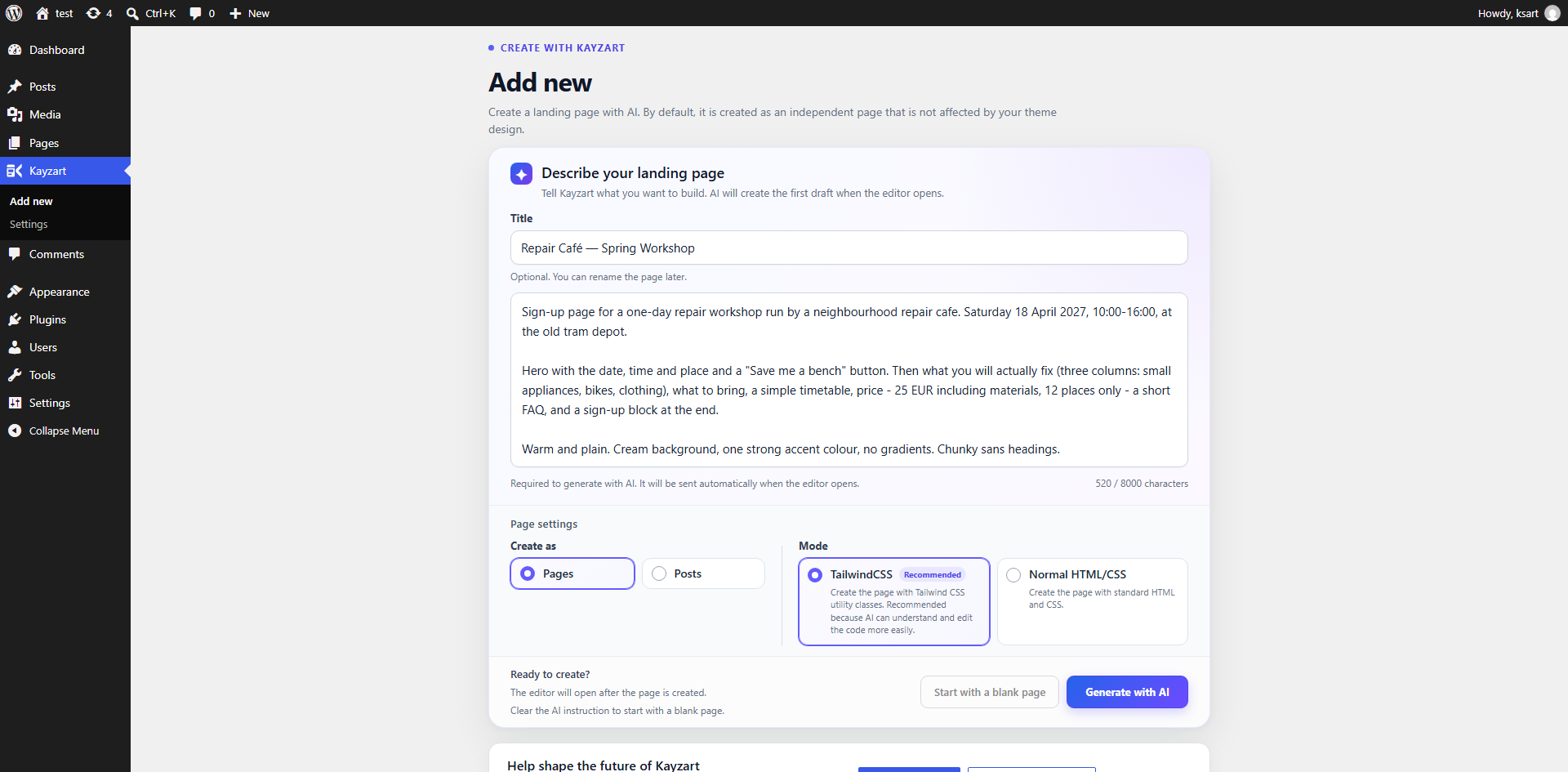
Describe the page you want
The title is optional. Just say what you need in plain language — “a landing page for a new service with a hero, features, pricing and a contact form.” Pick TailwindCSS or normal HTML/CSS on the same screen.
Prefer to write it yourself? Start with a blank page is still there.
Watch the AI build it
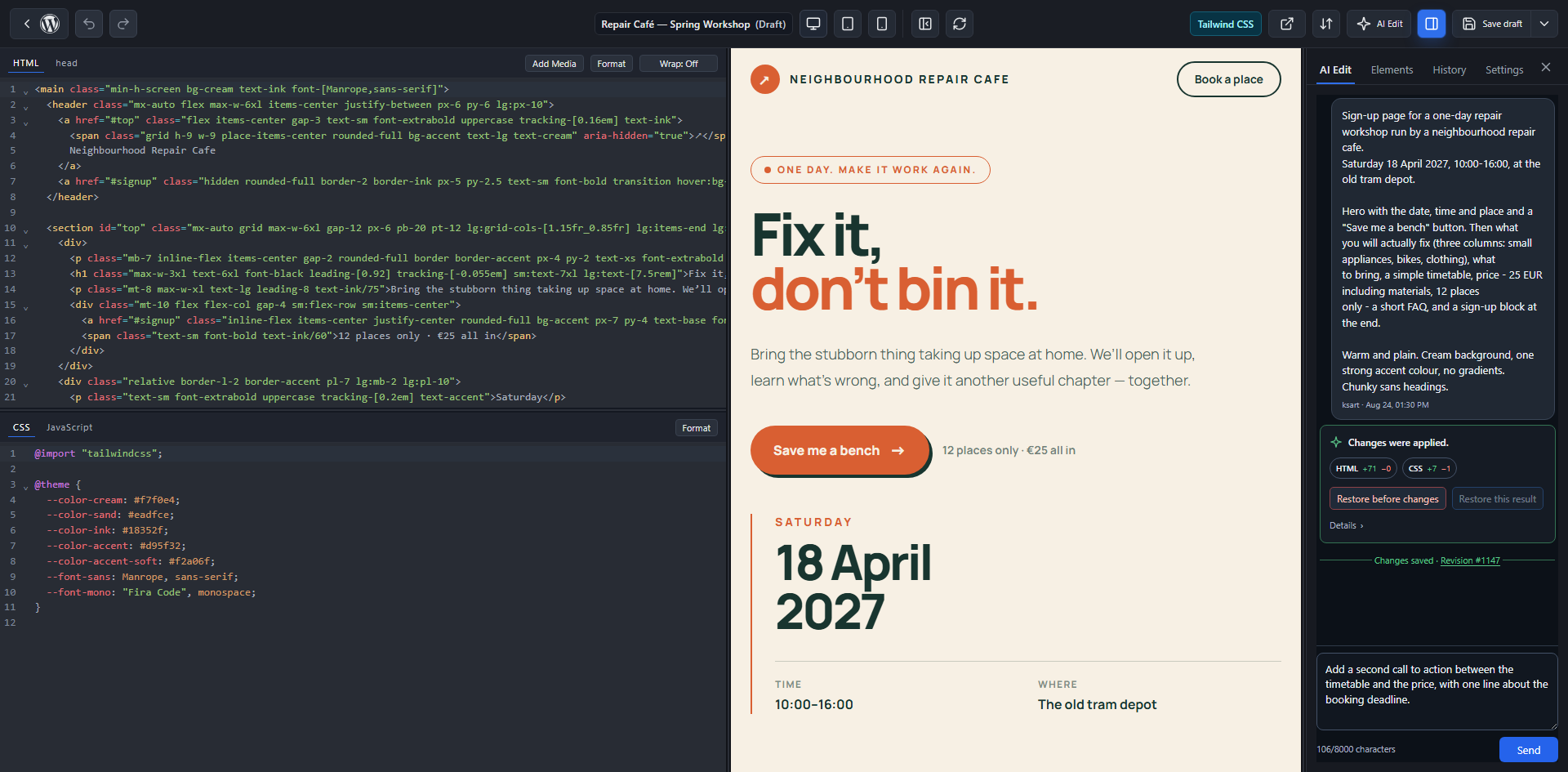
Each request runs as a background job with a running activity log. Cancel it any time you like.
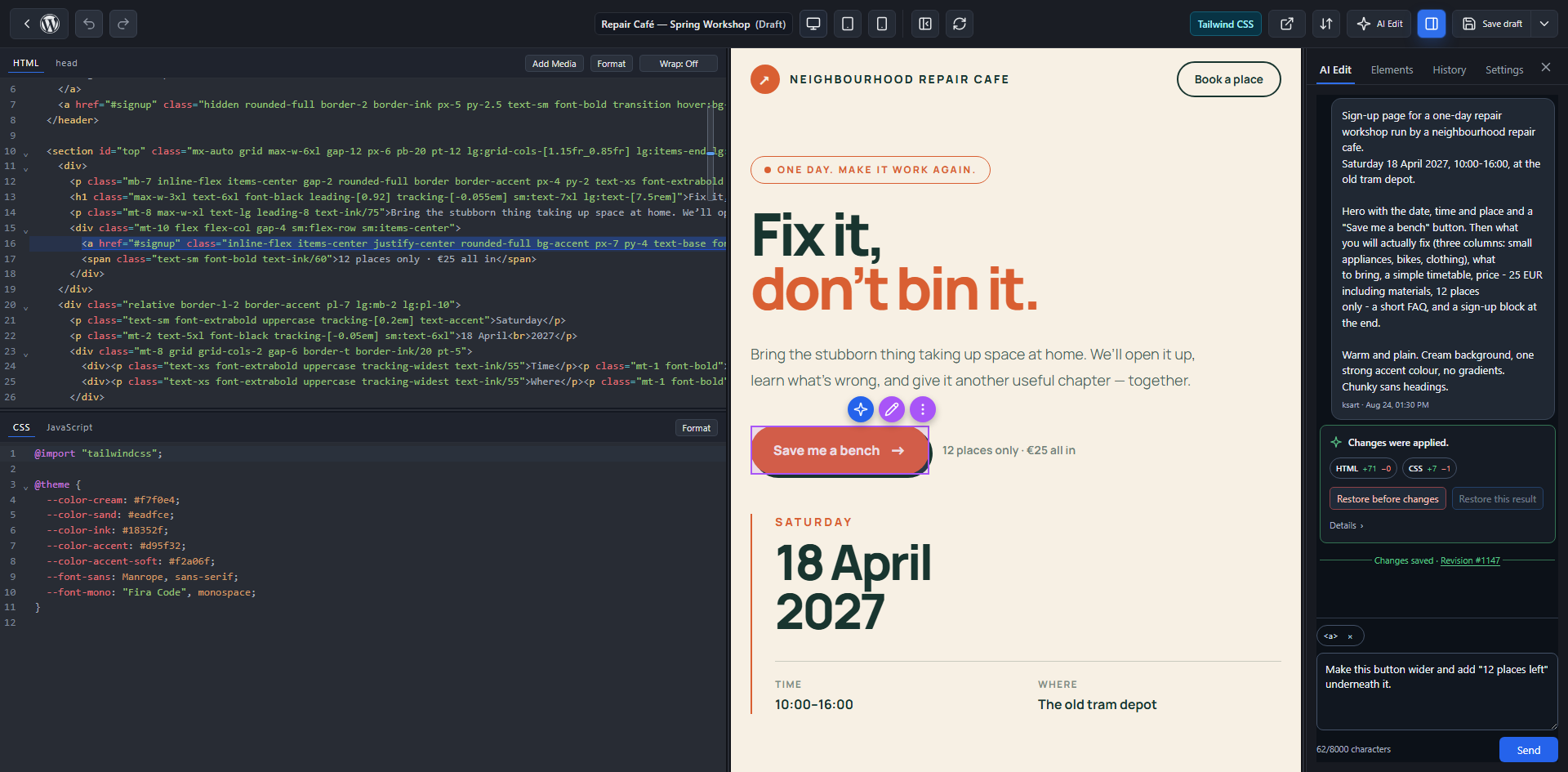
Keep going in plain language — “give the hero more room to breathe.” Select an element in the preview first and the AI works on just that part.
Open the code — it’s right there
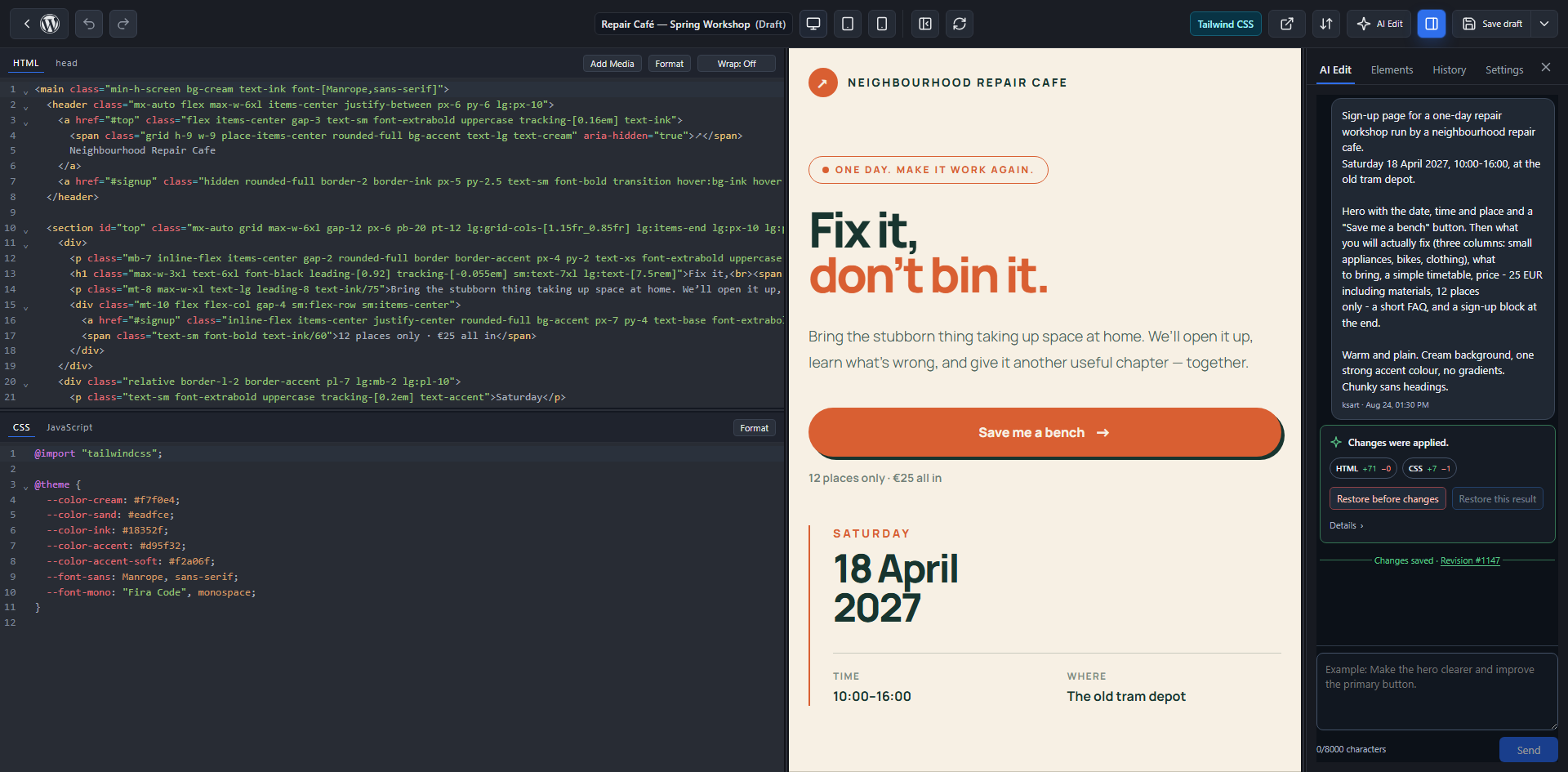
HTML, CSS and JavaScript tabs, with a live preview that follows every keystroke. The AI’s changes are applied to the editor, and you are the one who saves.
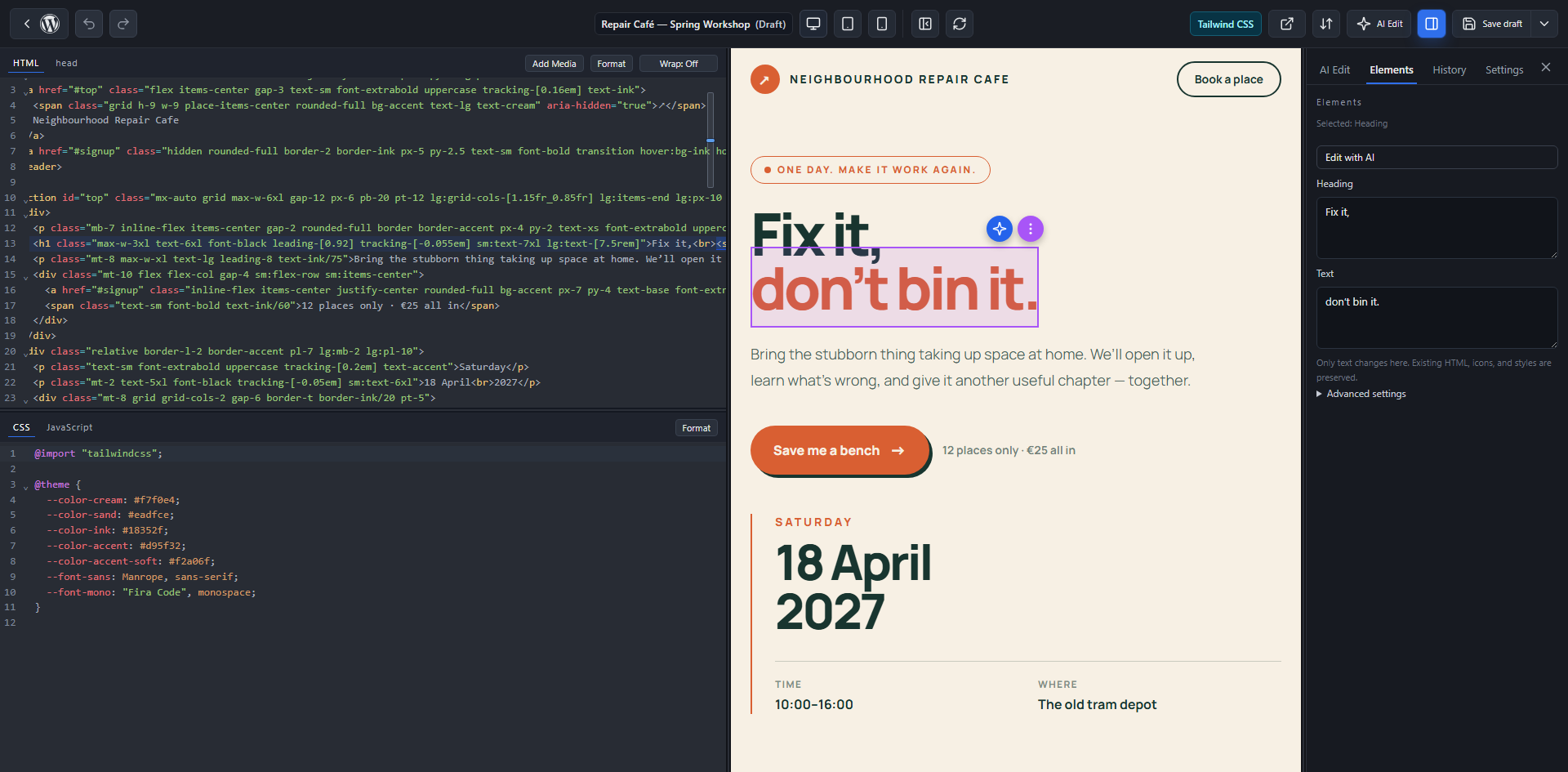
Click an element in the preview to jump straight to the source behind it.
The AI writes it. What comes out is plain HTML.
Page builders don’t give you the code. Standalone AI tools live outside WordPress. Kayzart is where you get both.
No builder markup left behind
No shortcode soup, no nested block wrappers in your database. HTML goes in the post content; CSS and JavaScript go in post meta. Stop using Kayzart and your code is still readable.
The AI never rewrites your JavaScript
It edits markup and styles only. Your JavaScript is passed to it as read-only context, so AI editing cannot inject or rewrite scripts on your page.
Nothing is published until you save
AI results are applied to your editor tabs. Read them, adjust them, and save when you are happy. Nothing goes live on its own.
Only fonts your site really has
The AI is given the families registered by your theme (theme.json) and the WordPress Font Library, plus system stacks that need no download. That is why AI-styled pages keep their typography for visitors instead of falling back to the browser default.
Stop fighting your theme.
Choose per page. No child theme required.
Standalone mode
Your theme’s header, footer, content template, styles and scripts are not loaded. You get a clean landing page that your theme’s CSS cannot break.
Theme mode
Renders inside your active theme’s template, so the page keeps your site’s header, footer and styling.
Already have the code? Use it.
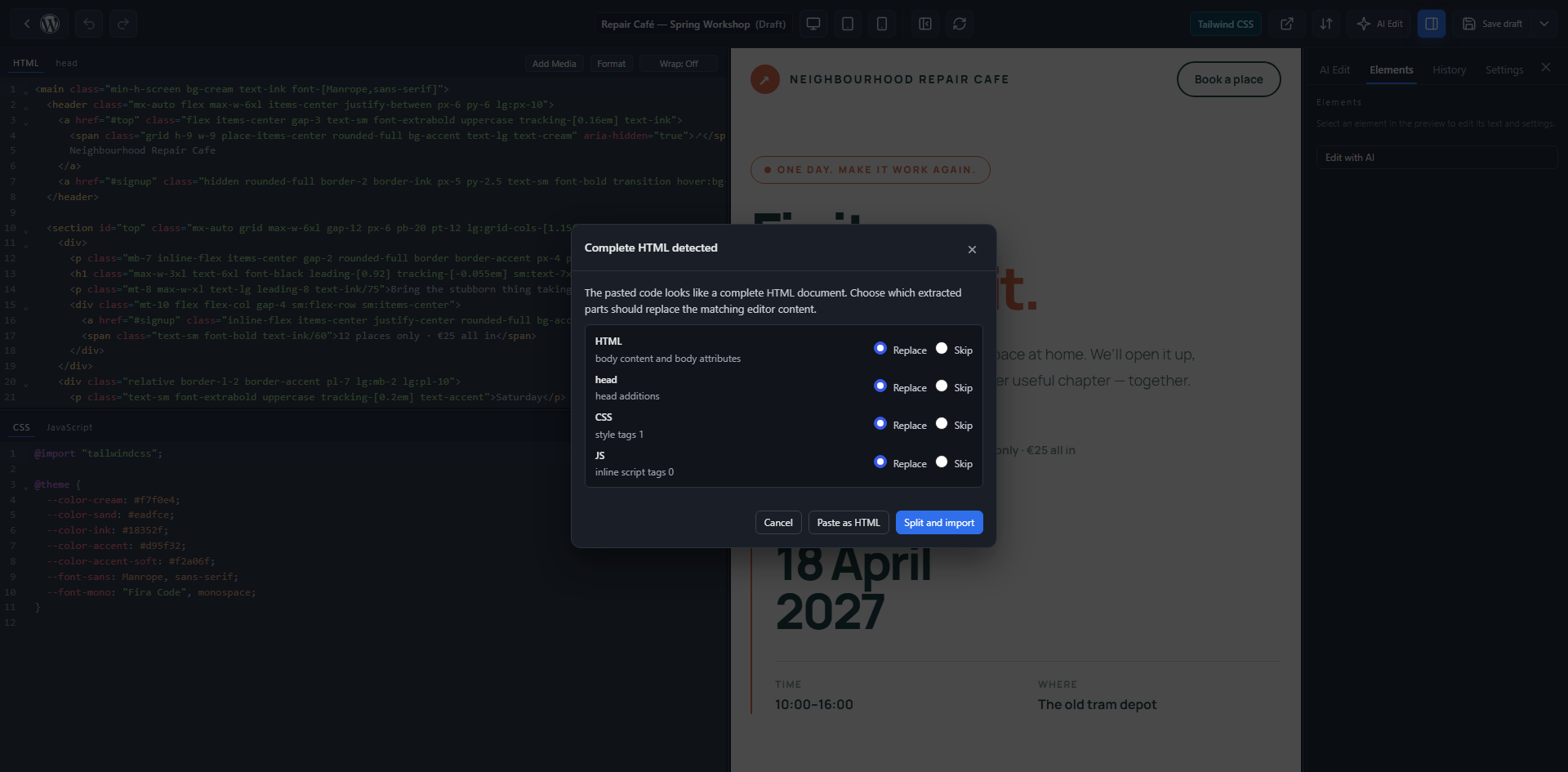
Hand-written, from a template, a file from your designer, or HTML that ChatGPT, Claude, Gemini or v0 gave you. Paste it and the live preview renders it straight away.
If you have one complete HTML document, full HTML import splits it into HTML, head, CSS and JavaScript for you — and shows you what it found before anything is imported.
Once it is in, you can ask the built-in AI to refine it in plain language.
Bring your own AI key.
There is no Kayzart account, no per-edit Kayzart fee, and no Kayzart server in the loop. You pay the AI provider you chose, directly.
WordPress 7.0 and later
Configure a provider — OpenAI, Anthropic, Google and others — through WordPress Connectors. One place, shared by every plugin on the site.
WordPress 5.9 – 6.9
Enter an OpenAI API key in Kayzart > Settings. It is stored as a non-autoloaded WordPress option, or you can supply it as an environment variable or PHP constant.
You decide who gets it
AI editing is controlled by a dedicated capability, granted to administrators and editors on activation. Users without it never see the AI features. A filter turns it off entirely.
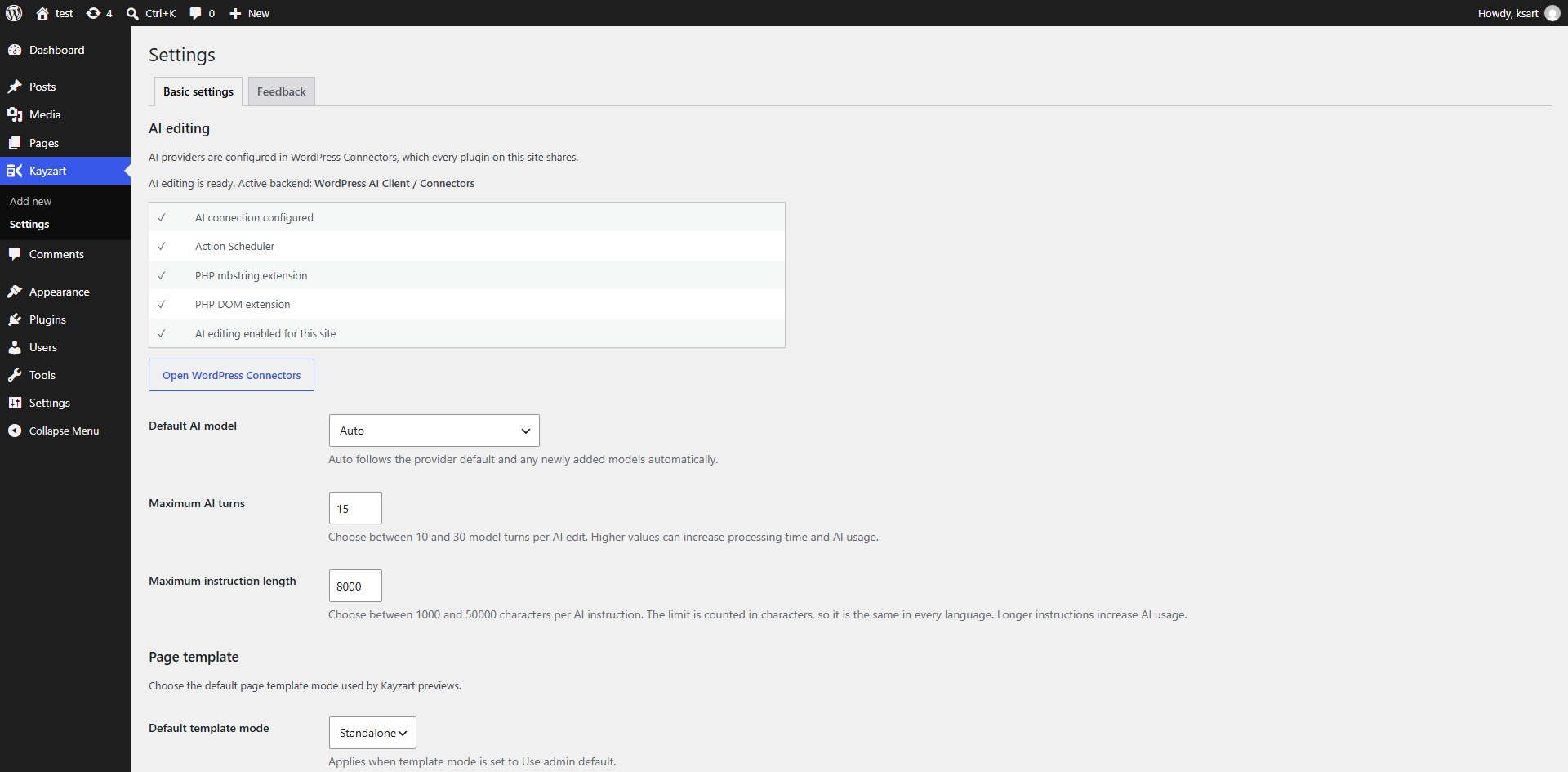
Cap how much work one request may do — maximum AI turns per request and maximum instruction length — in Kayzart > Settings. The same screen reports the connection state and the PHP extensions Kayzart needs.
Built for control, not bloat.
Generate from Add new 3.0
Describe the page and the AI starts building as the editor opens.
AI editing in plain language 3.0
No copy-pasting code back and forth between a chatbot and your editor.
Point at a selected element 3.0
Select something in the preview and the AI refines just that part.
Jobs with a live activity log 3.0
Every AI request runs in the background, shows its progress, and can be cancelled.
Live editor and instant preview
A CodeMirror 6 editor with an iframe preview that updates as you type.
Click the preview, jump to the code
Pick an element in the preview and land on the source behind it.
Full HTML import
One complete HTML document, split into HTML, head, CSS and JS automatically.
Elements panel for non-coders
Edit text, links and images in a GUI. Hand a page to a client without handing over the code.
TailwindCSS v4, compiled for you
Pick Tailwind mode and utility classes are compiled. The AI handles them more reliably too.
Duplicate a landing page
Copy an existing page to a draft, carrying over settings, featured image and terms.
Classic script or ES Module
Run modern JavaScript, choosing the mode per page.
WordPress shortcodes
Place shortcodes in the HTML; they are processed normally on the published page.
Frequently asked questions
Not to get a page. Describe what you want from Kayzart > Add new and the AI writes the HTML and CSS, then keep asking for changes in plain language or edit text, links and images from the Elements panel. Knowing HTML/CSS helps when fine-tuning — and the moment you want that control, the code is right there, and it is yours.
On WordPress 7.0 and later, configure a provider such as OpenAI, Anthropic or Google through Connectors. On 5.9–6.9, enter an OpenAI API key in Kayzart > Settings. There is no Kayzart account, no per-edit Kayzart fee and no Kayzart server in the loop — you pay your selected provider for usage.
AI results are applied to your editor tabs and nothing is published until you save. The AI edits markup and styles only, treating your JavaScript as read-only context. While a request runs you can watch the activity log and cancel it at any point.
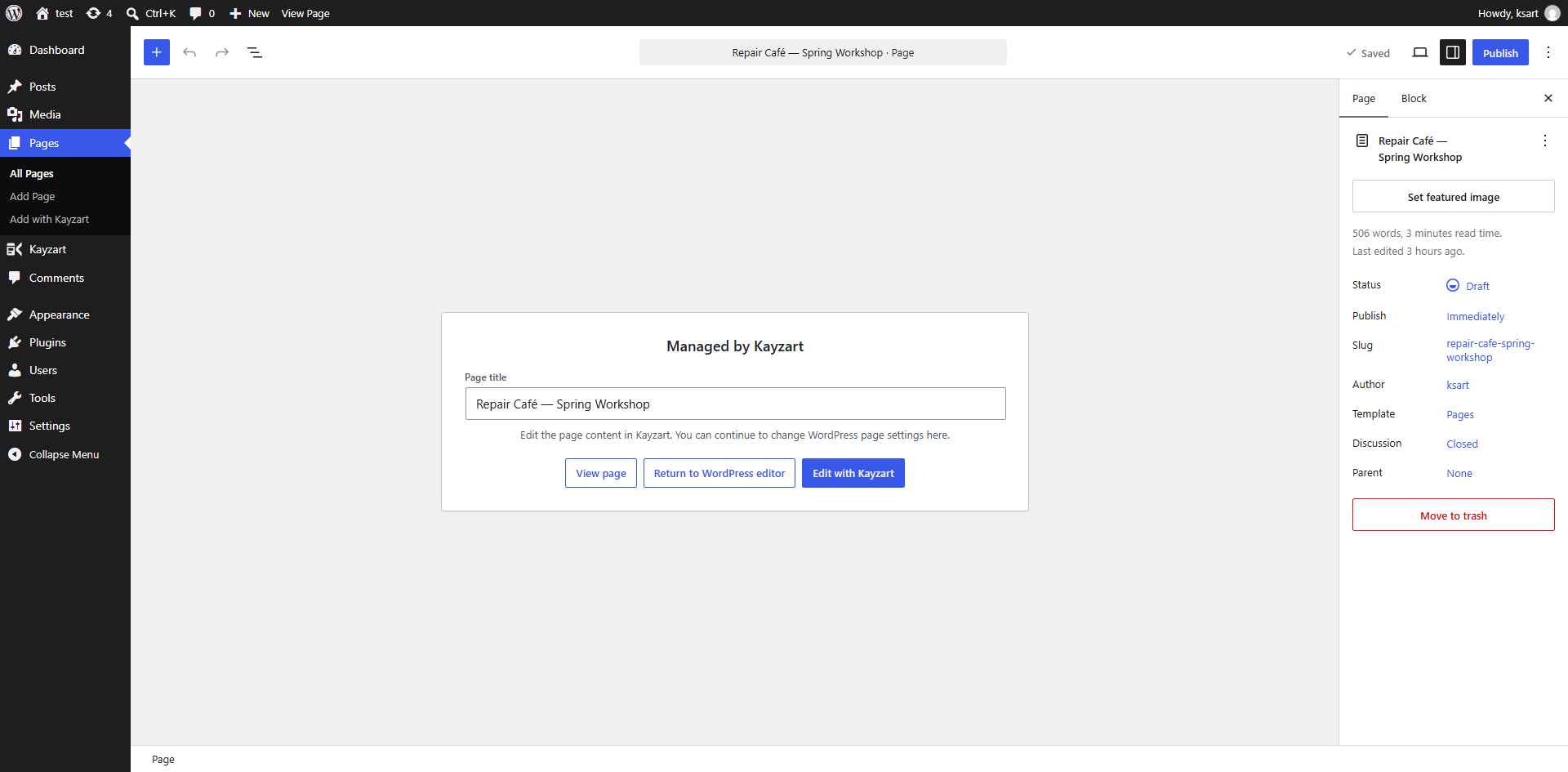
Create a landing page and paste it into the tabs. You can also convert an existing WordPress page from the page list or edit screen, in which case the existing content becomes the initial HTML. For one complete HTML document, use full HTML import to split it into the right fields.
Only fonts your site can really render: the families defined by your theme (theme.json), anything added through the WordPress Font Library, and three system font stacks that need no download. The AI cannot load remote fonts or external stylesheets. If you want a specific typeface, add it to the Font Library first and it becomes available to the AI.
Access is controlled by a dedicated capability, granted to administrators and editors on activation. Standard WordPress capability-management tools can grant or remove it for other roles or individual users. Users without permission don’t see the AI features at all, and a filter disables the feature entirely.
It renders your landing page without the active theme’s layout — the theme’s header, footer, content template, styles and scripts are not loaded, so your page isn’t affected by theme CSS or JavaScript. Kayzart’s own styles and scripts, and your page’s CSS/JS, still load.
HTML is stored in the post content; CSS, JavaScript, Tailwind and template modes, and other Kayzart settings are stored in post meta. No custom tables.
No usage data is sent automatically. There is an optional administrator survey under Kayzart > Settings > Feedback; every question is optional and answers are sent only when an administrator presses the submit button. It does not include the site URL, administrator email address, page content, or an installation identifier. AI editing does not pass through a Kayzart server either. See our Privacy Policy.
Build your first page today.
Install it on the WordPress site you already run, and describe the page you want.
GPL-2.0-or-later · PHP 7.4+ · WordPress 5.9+